
Table of Contents
1. Overview
Vehicle Search Intelligence (VSI) enhances Magento product discovery
by automatically understanding Year, Make and Model information
from search queries and filtering compatible products.
2. Features
✓ Natural language search
✓ Automatic vehicle detection
✓ Selected vehicle persistence
✓ Category filtering
✓ Search result filtering
✓ Selected vehicle block
✓ Merchant configuration options
3. Installation
Install using Composer
From the CLI, run the following commands to install the Vehicle Search Intelligence module.
- Run composer:
composer require globalecomservices/module-vsi - Run Magento install/upgrade scripts:
php bin/magento setup:upgrade - Compile dependency injection:
php bin/magento setup:di:compile - Deploy static view files (production mode only):
php bin/magento setup:static-content:deploy - Flush Magento cache:
php bin/magento cache:flush
Install manually
- Upload module to:
app/code/Globalecomservices/VSI
- Enable Module:
php bin/magento module:enable Globalecomservices_VSI
- Run Magento install/upgrade scripts:
php bin/magento setup:upgrade
- Compile dependency injection:
php bin/magento setup:di:compile
- Deploy static view files:
php bin/magento setup:static-content:deploy
- Flush Magento cache:
php bin/magento cache:flush
Initial Setup: Synchronize Vehicle Attributes
After installing and enabling Vehicle Search Intelligence, run the following command from your Magento root directory:
php bin/magento vsi:attribute:sync
This command synchronizes the available vehicle Make, Model, and Year options used by the derived product attributes:
- Vehicle Makes (
v_makes) - Vehicle Models (
v_models) - Vehicle Years (
v_years)
Run this command during initial setup before assigning vehicle fitment to products. It adds missing attribute options and prepares the attributes for automatic population.
Fitment Indexing
To Build Fitment Index, run the following command in CLI
php bin/magento vsi:fitment:index
Run the following command in CLI to disable Full page cache:
php bin/magento cache:disable full_page
4. Configuration
Admin -> Stores
→ Configuration
→ Global eCom
→ Vehicle Search Intelligence
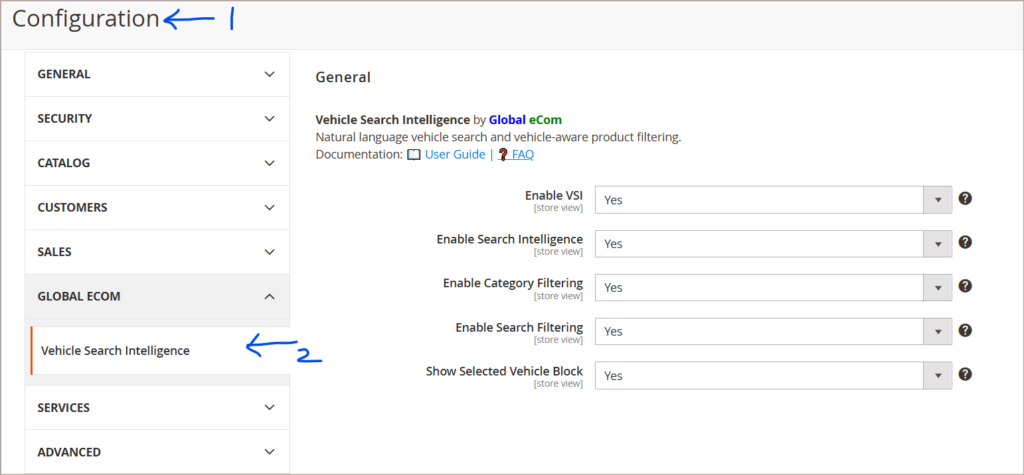
Settings
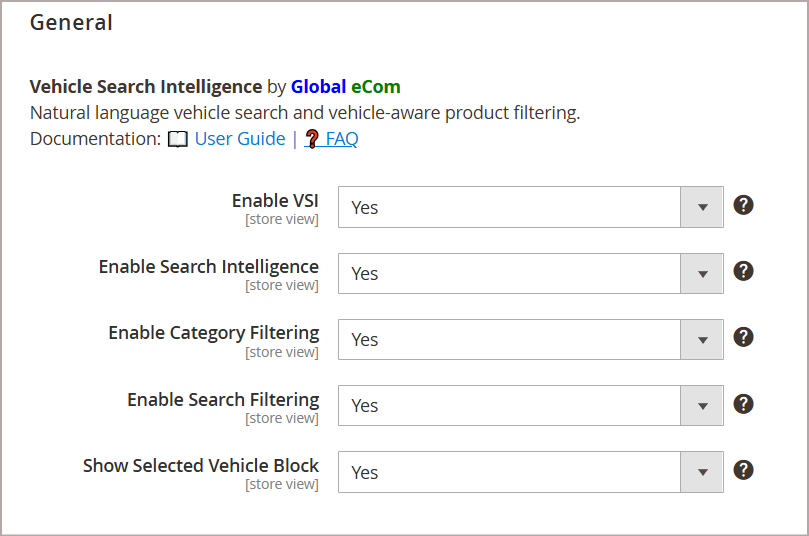
Settings Description
| Setting | Description |
|---|---|
| Enable VSI | Master switch |
| Enable Search Intelligence | Detect vehicle from searches |
| Enable Category Filtering | Filter category products |
| Enable Search Filtering | Filter search results |
| Show Selected Vehicle Block | Display selected vehicle |
Recommended Settings
Enable VSI = Yes
Enable Search Intelligence = Yes
Enable Category Filtering = Yes
Enable Search Filtering = Yes
Show Selected Vehicle Block = Yes
5. Testing
Vehicle Search Intelligence – Search Flow
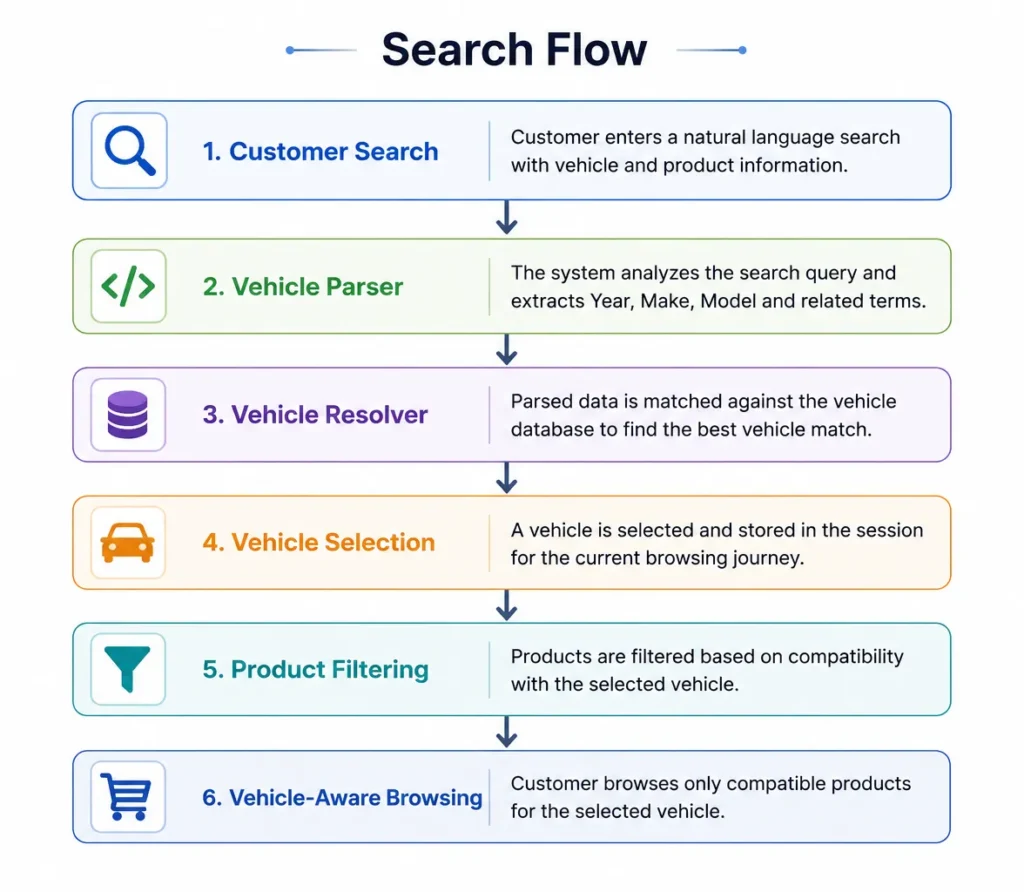
Configure Product Fitment
- Open a product in Magento Admin.
- Enter the vehicle fitment in the Vehicle Fitment (
vehicle_fitment) field. - Use the format
Make:Model:YearorMake:Model:Year-Year.
Example:
Toyota:Camry:2018-2026
- Save the product and reopen it.
- Verify that Vehicle Makes, Vehicle Models, and Vehicle Years are populated with the expected selections.
Note: You may need to run Attribute Synchronization using the command below, if you have not done that during the initial setup.
php bin/magento vsi:attribute:sync
This command synchronizes the available vehicle Make, Model, and Year options used by the derived product attributes.
Fitment Indexing
After product fitment has been configured, build or refresh the VSI fitment index when required:
php bin/magento vsi:fitment:index
Attribute synchronization and fitment indexing serve different purposes. Synchronization prepares the EAV attribute options; indexing builds the separate fitment index used by VSI’s vehicle-aware product matching.
Example Searches
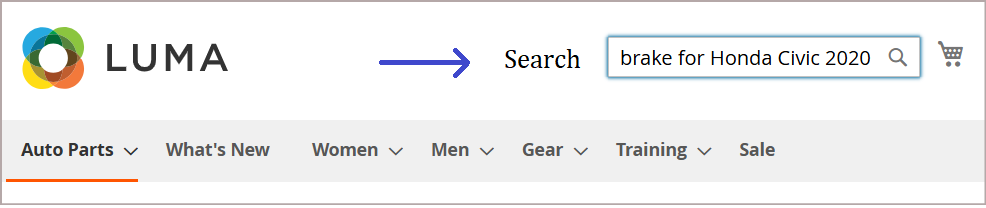
Honda Civic 2020 brake
brake for Honda Civic 2020
2027 Mercedes-Benz G63 AMG brake pads
BMW X3 2026 spark plugs
Verify Test Results
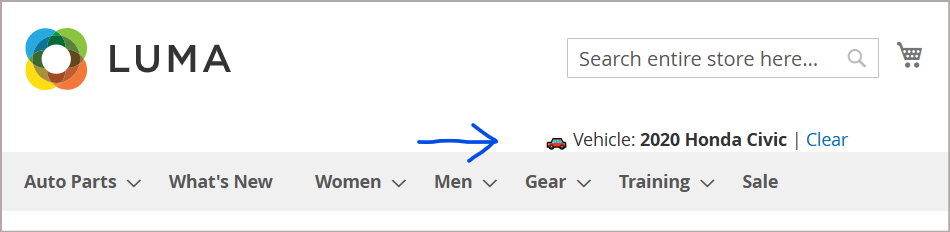
Vehicle selected (Natural search)
Vehicle block displayed
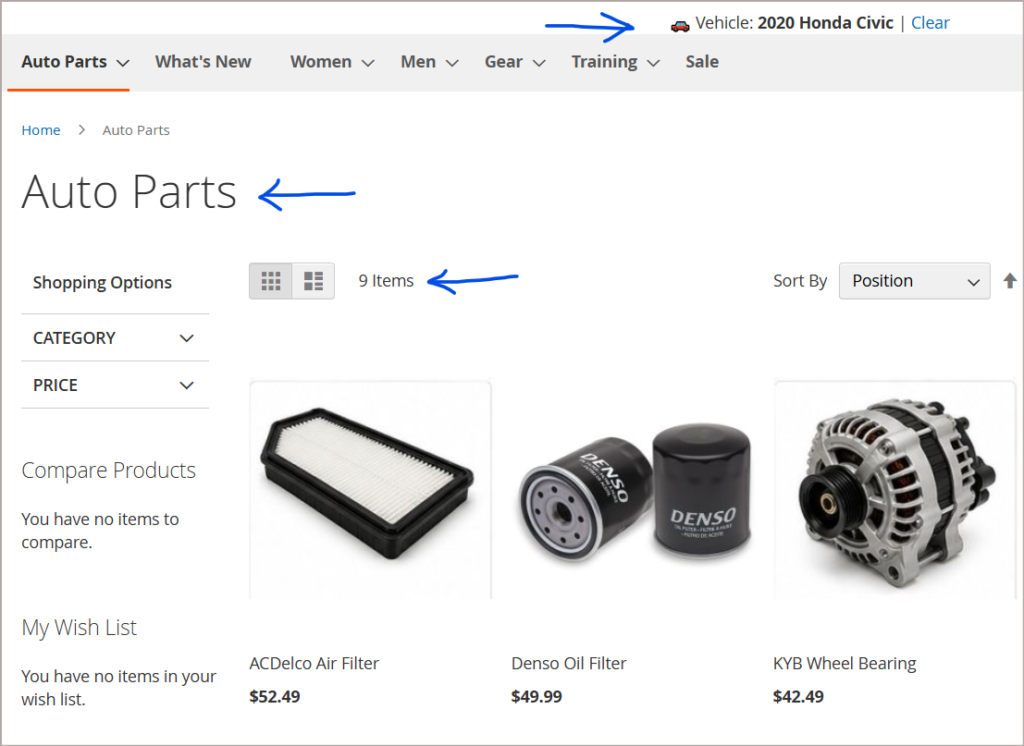
Category filtering works
Category Products for fitment example 2020 Honda Civic
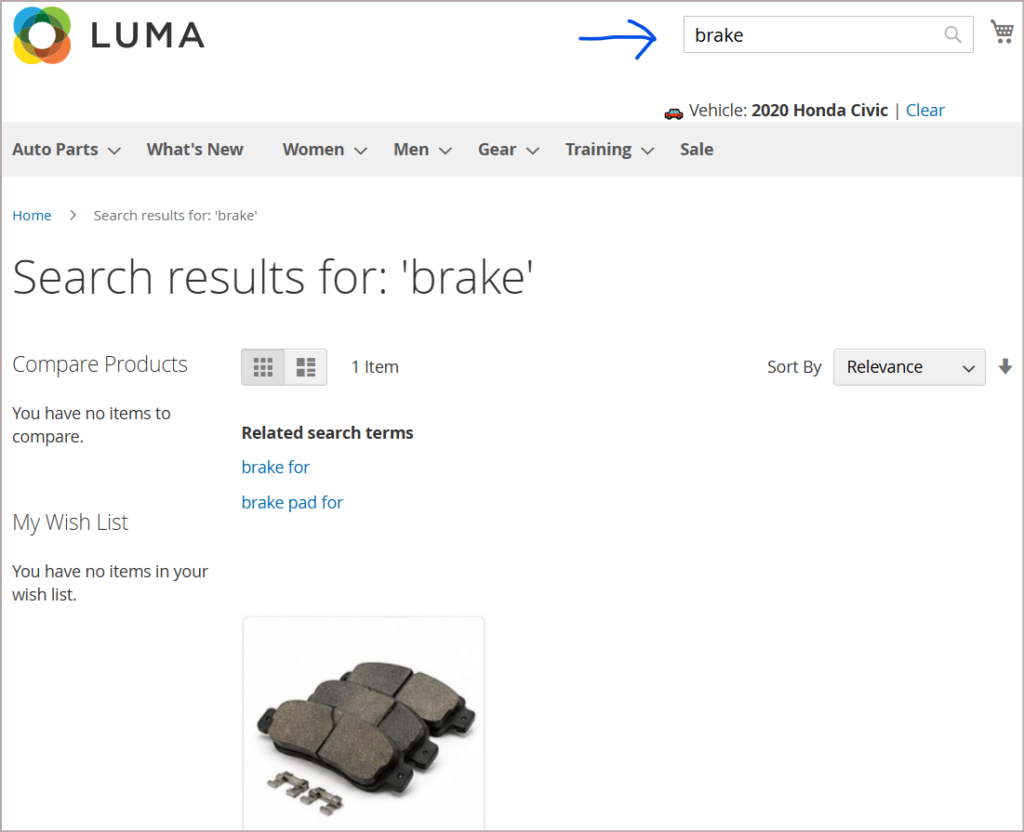
Search filtering works:
For any search, Vehicle Search Intelligence remembers your selected vehicle.
Example 1: brake
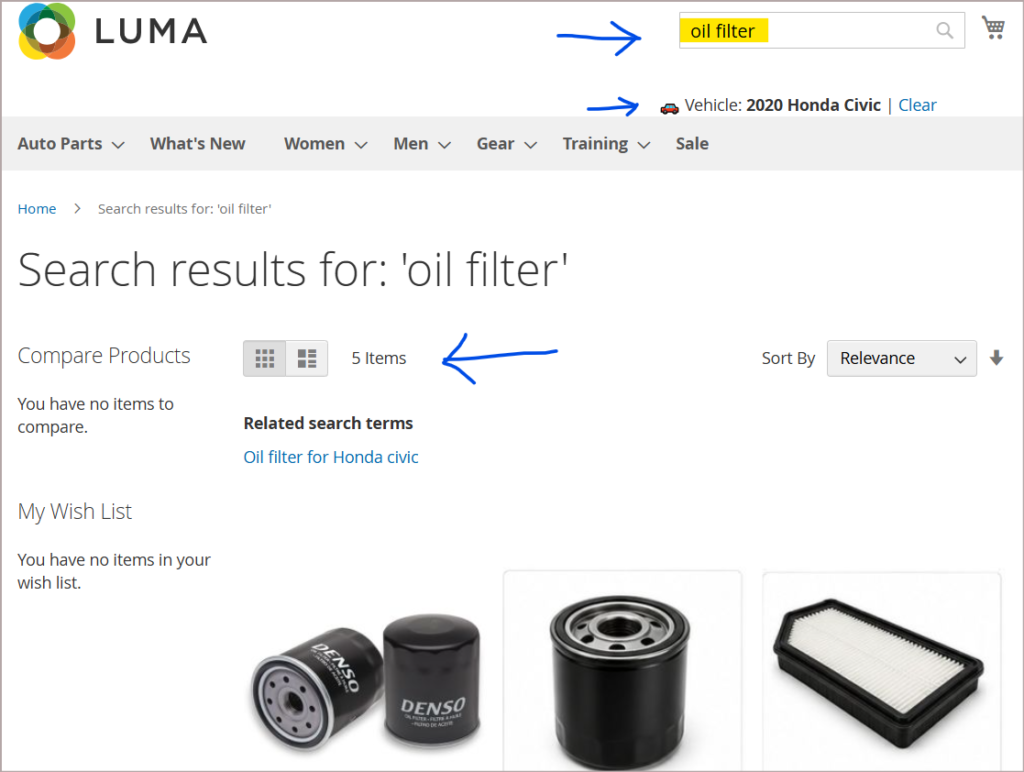
For any search, Vehicle Search Intelligence remembers your selected vehicle.
Example 2: Oil filter
Clear vehicle works
Clear Action
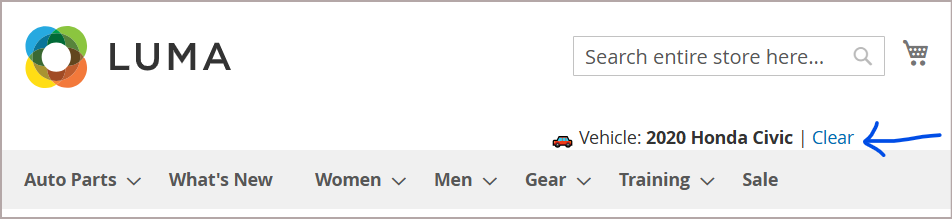
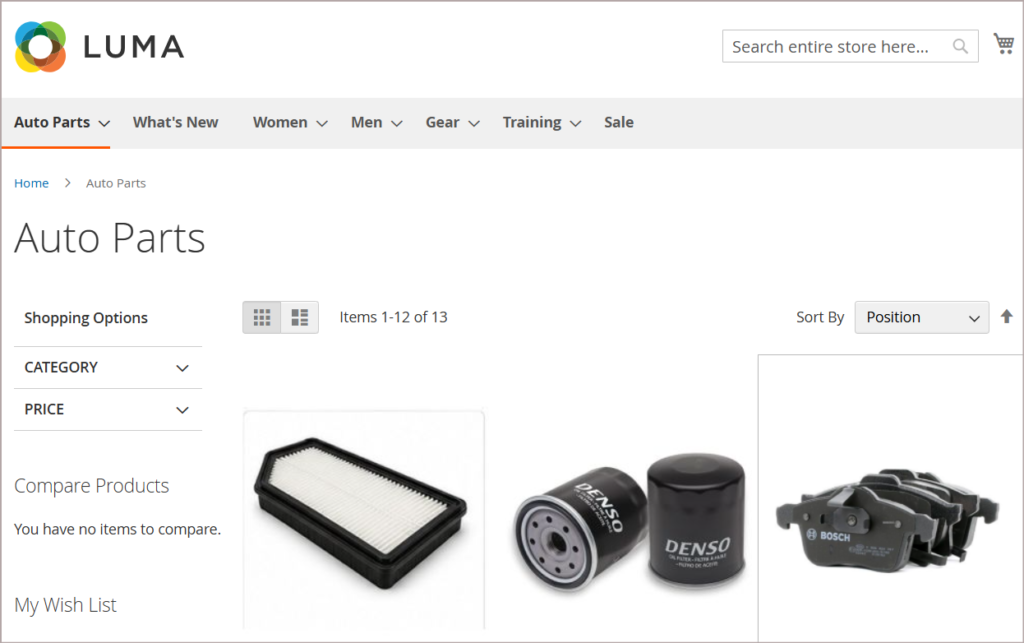
Vehicle Clear action Results:
Vehicle block is not displayed; All products are shown. No vehicle selected.
— End of Testing —
6. Questions
If you have any questions or issues, please contact us –Technical support
7. FAQ (Frequently Asked Questions)
What does Search Intelligence do?
It enhances Magento product discovery by automatically understanding Year, Make and Model information from search queries and filtering compatible products.
Example searches:
Honda Civic 2020 brake
brake for Honda Civic 2020
2027 Mercedes-Benz G63 AMG brake padsWhy are products not filtering?
Checklist:
✓ VSI enabled in Extension Configuration
✓ Category Filtering enabled
✓ Search Filtering enabled
✓ Vehicle selected
✓ Fitment index built
When should I rebuild the fitment index?
php bin/magento vsi:fitment:indexRun after:
- importing products
- updating fitment attributes
- changing vehicle assignments
Does Magento reindex run VSI?
Answer: No.
Run:
php bin/magento vsi:fitment:index
Why do I see all products?
Possible causes:
Vehicle not selected
Category Filtering disabled
Search Filtering disabled
Fitment index outdated
Does VSI work with Full Page Cache?
V1 supports stores with FPC disabled on vehicle-aware pages. Additional caching strategies will be enhanced in future versions.
Which search phrases are supported?
Examples:
Honda Civic 2020 brake
brake for Honda Civic 2020
2027 Mercedes-Benz G63 AMG brake pads
BMW X3 spark plugs
Why is only one product showing?
VSI filters products based on the currently selected vehicle and fitment assignments.